

- Lemonade - Windows-only, optimized for AMD GPUs and NPUs
- Ollama - Cross-platform (Windows, macOS, Linux), supports various hardware
Why Local Inference?
Running models locally provides several key advantages:- Complete Privacy: Your data never leaves your machine
- No API Costs: Eliminate ongoing API expenses
- Low Latency: No network round-trips for inference
- Offline Capability: Work without internet connectivity
- Hardware Acceleration: Leverage your local GPU, NPU, or specialized AI processors
- Lemonade
- Ollama
Lemonade SDK provides high-performance local inference on Windows, with optimizations for AMD hardware. It exposes an OpenAI-compatible API and is already configured in Morphik.

Built-in Support: Lemonade models are pre-configured in
morphik.toml for both embeddings and completions. Simply install Lemonade Server and select the models in the UI.System Requirements
- Windows 10/11 only (x86/x64)
- 8GB+ RAM (16GB recommended)
- Python 3.10+
- Optional but recommended:
- AMD Ryzen AI 300 series (NPU acceleration)
- AMD Radeon 7000/9000 series (GPU acceleration)
Quick Start
1
Download Lemonade
Download and install Lemonade from the official site:
lemonade-server.ai.
2
Start Lemonade Server
Start the Lemonade server following their documentation. Make sure it is running and note the port.
The API is OpenAI-compatible (e.g.,
/api/v1/models).3
Configure Morphik - Two Options
Option 1: Using the UI (Recommended)
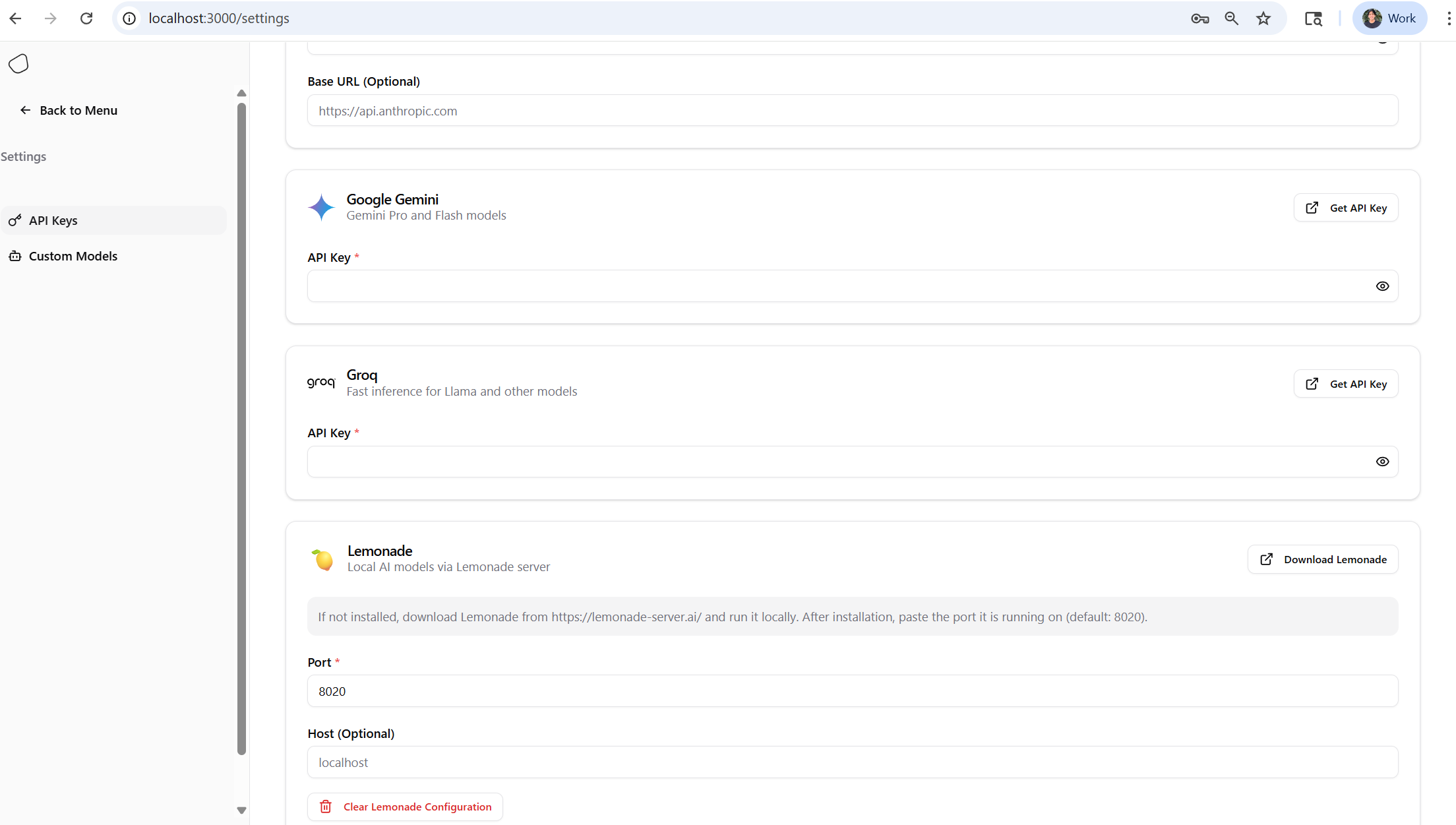
- Open the Morphik UI and go to Settings → API Keys
- Select “Lemonade” (🍋). No API key is required
- Enter the host and port where Lemonade is running
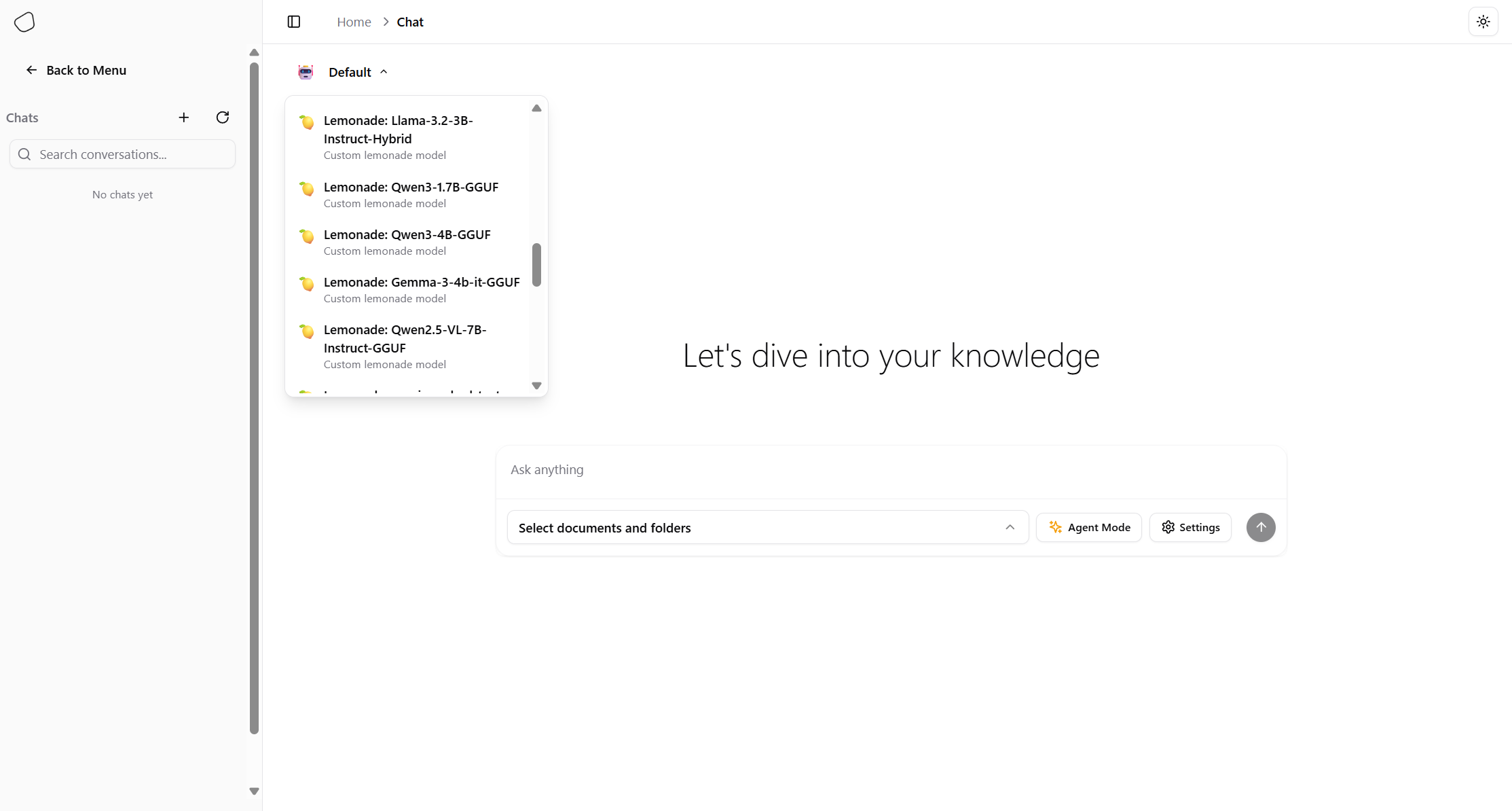
- Open Chat and use the model selector pill (top left) to pick a Lemonade model
Option 2: Edit morphik.toml
You can also set Lemonade models directly inmorphik.toml so they’re used by default.
Ensure the api_base points to your Lemonade server:Performance Tips
- Model Quantization: Use GGUF quantized models for better performance
- Low-memory systems: Under 16GB RAM, prefer models under 4B parameters
- Hardware Acceleration: Automatically detects and uses AMD GPUs/NPUs when available
- Memory Management: Models are cached after first download
Troubleshooting
Connection Issues
Connection Issues
- Verify server health:
curl http://localhost:8020/health - List models:
curl http://localhost:8020/api/v1/models - For Docker: Use
host.docker.internalinstead oflocalhost - Check firewall settings for port 8020
Model Loading Errors
Model Loading Errors
- Ensure sufficient disk space (5-15GB per model)
- Try smaller quantized versions (Q4, Q5)
- Check model compatibility with
lemonade list
Performance Issues
Performance Issues
- Use GGUF quantized models for better performance
- Monitor GPU/NPU usage with system tools
- Adjust batch size and context length in model config